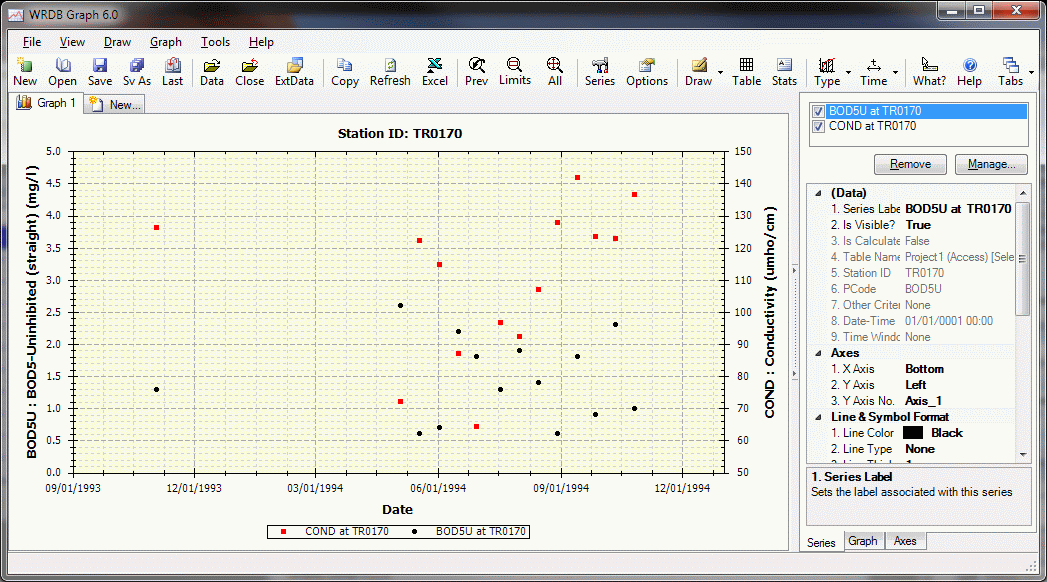
The WRDB Graph form is shown below. Click on each part of the form to get helpful information:
Context Menus: right-clicking on various parts of the graph form displays context menus, offering quick shortcuts to frequently used functions, as follows:
Main Menu and Toolbar: allows you to show and hide selected toolbars, toolbar text, and the status bar.
Graph tabs: see Graph Tabs.
Graph background: displays the graph context menu:
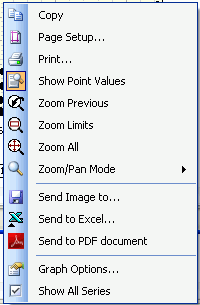
Graph series: same as above, but last item changed to allow you to hide the selected series.
Axes: same as above, but last option changed to allow you to configure the axis. If click on Y axis, you can also quickly set the maximum value of the axis.
Scroll bars: provides scrolling options.
Double-clicking: depending on where you double-click, the following actions occur:
Graph tabs: rename graph tab.
Graph title: reset title text.
Axes: reset axis titles.
Graph: display Manage Series dialog.