The WRDB Watershed Characterization System can be used to select and generate several standard reports designed to describe the physical characteristics of watersheds (subbasins) you have defined. The following reports are available:
Water Bodies & 303d
Population Estimates
Housing and Sewage
Soil Characteristics
Landuse Characterization
Permitted Point Sources
All reports require that a subbasins layer be defined in advance. In addition, each report has its own unique set of required layers (e.g., the Landuse Characterization report requires that a landuse grid or shapefile be loaded and identified). Most required layers can be easily downloaded using the built-in layer download tool. Default layer and field names are automatically assigned the first time you use WCS; settings are stored on your computer.
Getting Started
The user must define one or more subbasins for which you want to perform a detailed analysis. The subbasin layer is a closed polygon layer containing at least one field which describes each subbasin's name or ID.
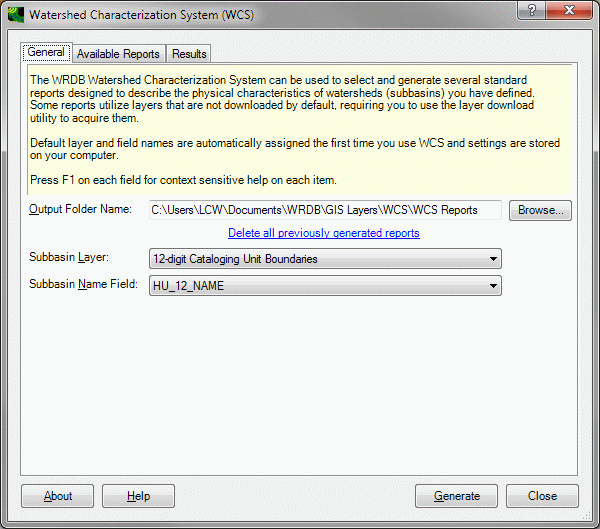
The WCS tool is activated using the Tools | Watershed Characterization System (WCS) menu item), at which point the following form appears:
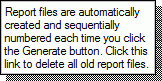
Context-sensitive help is available for all fields on this form by moving to that field and then pressing F1 key. Alternatively, you can click the '?' button in the upper right portion of the form, then click the button, field, list or grid you want information about. You will see popup help like this:
The General Tab
On the General tab, enter or browse to the folder where you wish generated reports to be saved. By default, this folder is saved under in My Documents\WRDB\WCS. Every time you generate a report, a new, uniquely named output file is created. You can quickly delete previously generated report files using the link on this tab.
Next, select the shape file layer containing the polygon(s) that define your subbasin(s). Note that the reports always analyze all subbasins in the layer. You must also select the field which contains the subbasin name to be used in the report. Some watershed delineation routines by default just creates a field containing an integer subbasin number; you may choose to add an additional field into which you enter a more descriptive name and use it instead.
When selecting layers, WCS knows the type of layer required (e.g., line shapefile, polygon shapefile, or grid). Only layers of the appropriate type are available for selection in the drop-down list. Once the layer is selected, the field name drop-down list is automatically populated with the fields found in the attribute table associated with that layer. Furthermore, the expected field names will be automatically selected if found. This scheme allows the WCS tool to work most easily with the standard shape files distributed with BASINS yet still gives you the flexibility to use custom shape files if you wish.
The Available Reports Tab
Use this tab to define which reports you want to generate, and what layers and fields are logically associated with the required input information.

As you select each report in the list on the left, the tab associated with that report is displayed on the right. You can run the reports individually, or select several so that the reports are all generated at once.
Each report has its own unique set of layers needed to run, and you usually need to download additional layers than those automatically compiled for you when you download them. For example, in the above figure the “Reach File, V1” layer was initially provided when the project was set up, but the 303d shapefile had to be downloaded separately.
The purpose and contents of the individual reports is self explanatory, however a few comments are in order:
WCS expects the user to select reasonable layers and fields. If a transportation layer is selected for reach layer, it may be possible for the report to be generated without error, but the results would obviously be invalid.
Empty portions of a report usually indicate that no such features were found in any of the subbasins you've defined. For example, there may be no 303d waterbodies located in your subbasins, so there will be no entries in that report table.
The Population Estimates report is intended to characterize changes in population over time, so it is expected that two distinct census period will be selected, and each attribute table will have identical fields and matching shapes. Census results by census tract may violate this requirement if tracts are created or eliminated from one census to the next. If this occurs within any of your subbasins, an error message will be shown.
The Soil Characteristics report relies on a polygon shapefile and single soil ID field. Soil characteristics are obtained by linking the value found in the soil ID field with the data found in the file SoilNames.txt. This is a tab-delimited text file containing Soil ID, Soil Name, and Soil Group columns located in the plug-ins folder for WCS. You can edit this file using a text editor or spreadsheet to add soil characteristics for your state or region.
Landuse data can be taken from one of five different sources: USGS GIRAS shapefiles, NLCD grids (1992 or 2001), User shapefile, or User grid. Like soils information, the shapefile or grid contains a single field or value defining a landuse ID; the ID is related to landuse characteristics using a tab-delimited text file found in the WCS plug-in folder called LandUses.txt. This file stores IDs and names for all five types of landuse data sources and can be edited using a text editor or spreadsheet program.
Note that most lists in the WCS form (e.g., layer lists) are populated when the form is first opened; if you add layers while WCS is open, it may be necessary to close then reopen the form to refresh it.
The Results Tab
Each report is generated into an HTML-formatted file which is displayed on the Results tab. HTML reports are ideal for creating web pages or interpretation by word processing and spreadsheet programs. They automatically resize the columns to fit the available width of the printed or displayed page.
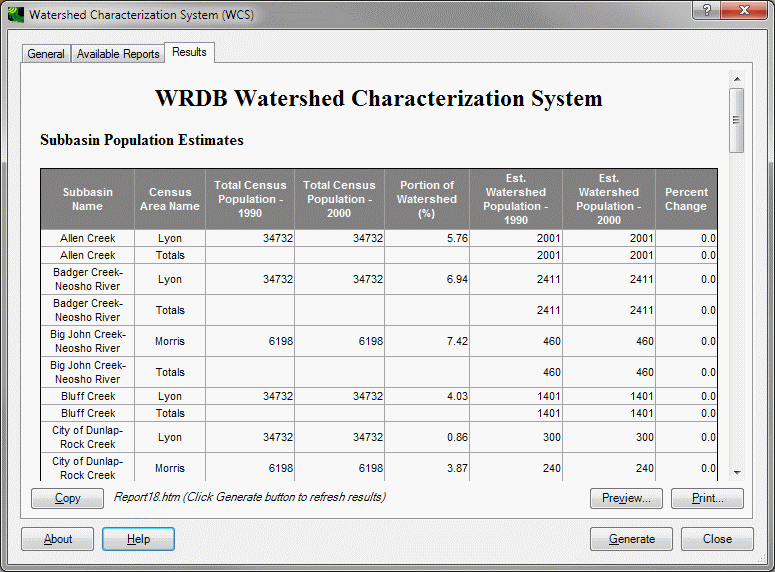
The report can be copied to the clipboard, printed, or used directly. Each time a report is generated, a new HTML file is created and given a unique name. You can delete all previously generated reports using a link provided on the General tab.