New GIS: removes all layers and clears the current display.
Open GIS File: a GIS file has the extension .GIS; it contains the specifications for the map display. Note that the actual data are not stored in the GIS file, only pointers to files that contain the data. WRDB does not recognize MapWindow or DotSpatial GIS files (like .mwsr) but uses its own format. Settings include:
Names of ArcView-compatible shape files that are loaded as layers (only point, line, and polygon layer types are supported). When opening a .shp file, all associated files must also exist in the same directory (.shp, .shx, .dbf, .sbx, .sbn, and .prj). If not found in the original directory, WRDB has the ability to search for files in logical alternative locations.
Layer names.
Point, line, and polygon display settings like color, thickness, linetype, symbol type, etc.
Labeling settings (WRDB 5.1 and above only).
Data file connections (for animation only).
Append GIS File: while Open GIS File replaces the map with a new one, Append will add any new layers found in a second file to the current map.
Save GIS File: this saves the map settings to the current file.
Save GIS As...: this allows you to save the map settings to a new GIS file.
Open Last GIS: WRDB remembers the last GIS file you were viewing and can restore reopen it using this item. You can also use the Recent Files menu item to reopen previous GIS files.
The next items only appear if you are using the GIS tool to perform model output animation.
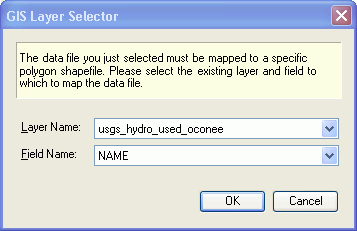
Open Data File/Table: model output data files can be opened and linked to a previously loaded polygon shape file. WRDB supports many different file formats such as Paradox, dBase, BMD, LSPC out, etc. After you select the file or table, the following form appears:
Select the polygon shapefile to be used for animation, and the name of the field in that file's attribute table to link to the WRDB Station_ID field in the data file/table just opened.
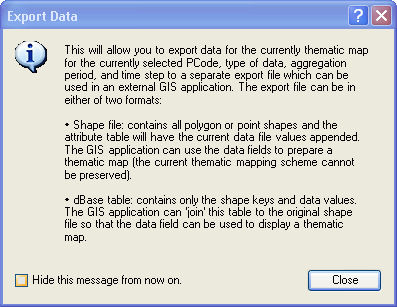
Export Data: the following dialog is displayed before continuing:
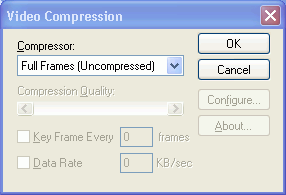
Save Movie: this menu item allows you create an .AVI movie file which can be replayed to show the animation results. After specifying the name of the .AVI file to be saved, the following form appears:
You can select different types of compression formats from the drop-down, but please note that due to instabilities in the Microsoft-supplied tool, some formats may generate an error message. The uncompressed format appears to be reliable, but of course generates large files.